

Authentication Architecture
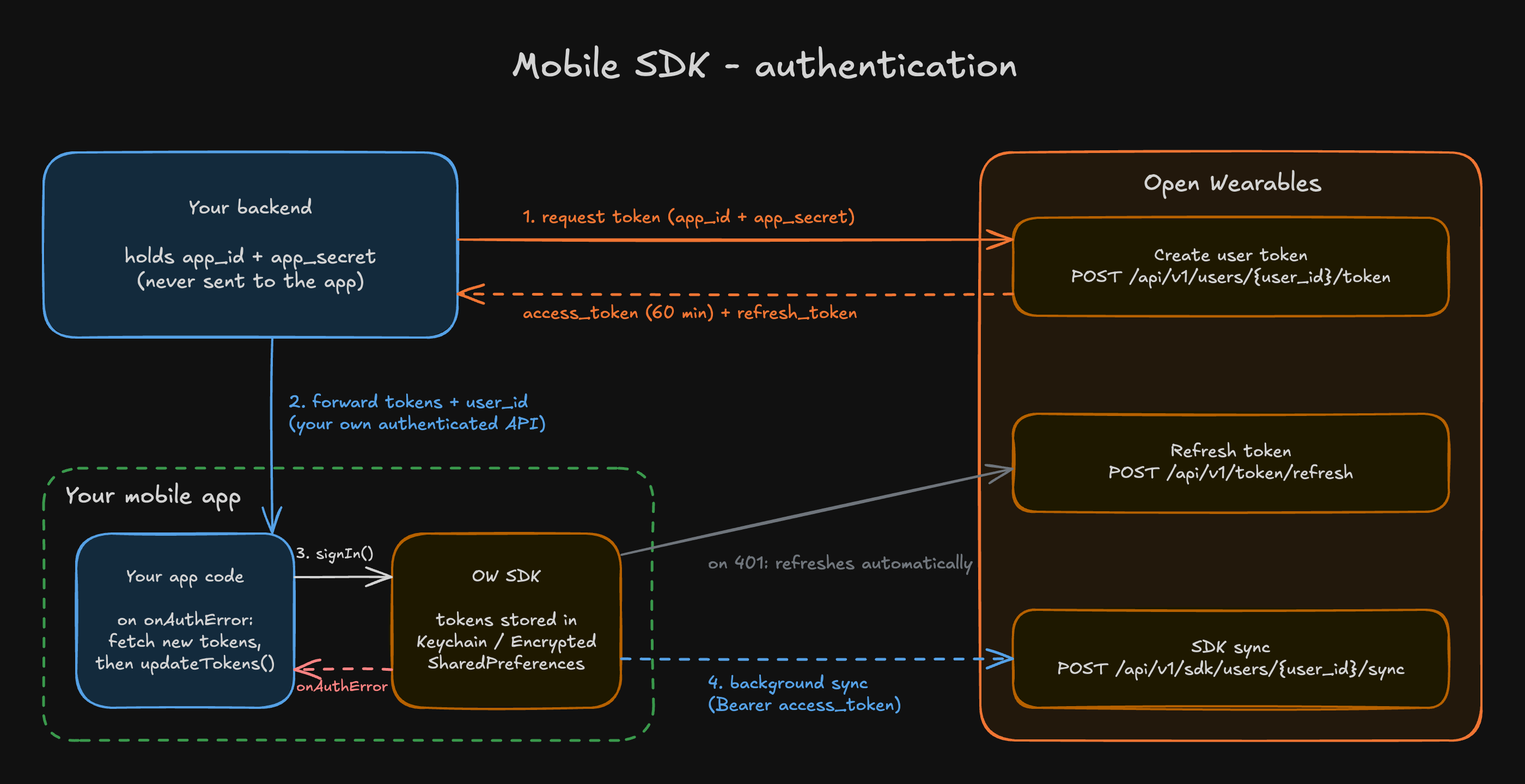
Your backend holds the app credentials (app_id + app_secret) and exchanges them for short-lived, user-scoped tokens. The app only ever receives those tokens.
- Your backend calls
POST /api/v1/users/{user_id}/tokenand receives anaccess_token(valid 60 minutes) and arefresh_token. - Your backend forwards both tokens and the Open Wearables
user_idto the app over your own authenticated API. - The app passes them to
signIn(). The SDK stores them in the iOS Keychain / Android EncryptedSharedPreferences. - The SDK uploads data to
POST /api/v1/sdk/users/{user_id}/sync. When the access token expires, it refreshes it on its own viaPOST /api/v1/token/refresh.
Apps with no backend of their own can use single-use invitation codes instead. This is not the standard flow - see Choosing an onboarding flow.
Backend Endpoint
Before you start:- Create an application in the developer portal under Settings → Credentials → SDK Applications and store
app_id/app_secretin your backend’s secrets. The secret is shown once. - Create an Open Wearables user for each of your users with
POST /api/v1/usersand store the returnedidnext to your user. See User Registration.
- Node.js
- Python
token_type and expires_in (seconds). The app calls your endpoint on first connect and whenever the SDK reports an auth error.
SDK Lifecycle
Configure on every launch
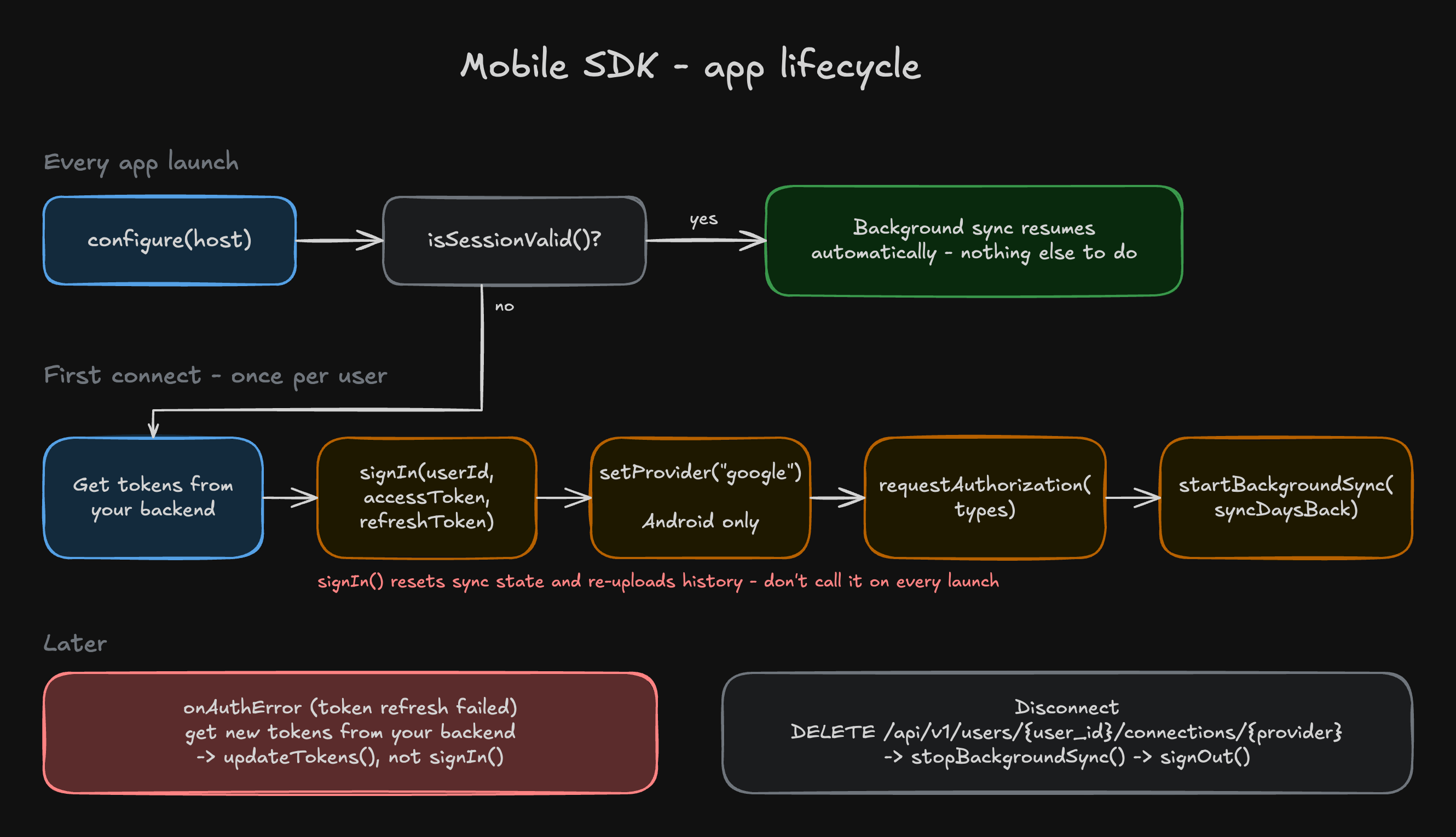
Callconfigure(host) on every app start, before any other SDK call. Besides setting the host, it restores background sync for a user who is already signed in. isSessionValid() then tells you whether a user is signed in - it only checks that credentials are stored on the device, not that the access token is still valid.
Sign in once per user
CallsignIn(userId, accessToken, refreshToken) only when there is no session or a different user signs in. userId is the Open Wearables user ID (UUID), not your own.
signIn() also accepts an Open Wearables API key instead of tokens. The key ends up on the device and grants full API access, so only use it for internal tools.
Handle expired sessions
The SDK refreshes the access token automatically. If the refresh itself fails (for example, the refresh token was revoked), the SDK reports an auth error. Get new tokens from your backend and pass them toupdateTokens(), which keeps the sync state.
Select the provider (Android)
On Android, data can come from Health Connect or Samsung Health. CallsetProvider() explicitly:
- If you don’t, the SDK picks Samsung Health whenever it is installed. Release builds can’t use Samsung Health until Samsung approves your app (see Samsung Health production requirements), so choose Health Connect unless you have that approval.
- The SDK persists the choice across restarts.
- On iOS, Apple Health is the only source and no selection is needed.
Request permissions
CallrequestAuthorization(types) with only the types you need - long permission lists reduce acceptance. The returned boolean means different things per platform, so don’t treat false as “no access”:
Start background sync
CallstartBackgroundSync(syncDaysBack) after permissions:
syncDaysBacklimits how much history is uploaded - from midnight that many days ago.0means no limit: the user’s entire history. The value is persisted until sign-out, and omitting it keeps the stored value - which is0if it was never set. The smallest window is1(since yesterday). Widening it later requiresresetAnchors()while sync is stopped.- It returns
falseinstead of throwing when it can’t start - the SDK isn’t configured, no user is signed in, or (iOS) no types are authorized. - There is no manual sync call. The SDK syncs in the background and resumes an interrupted sync when the app returns to the foreground.
- Track progress with
getSyncStatus(). Until the first historical upload finishes,initialExportDoneisfalse- a good moment to ask the user to keep the app open.
The OS decides when background work actually runs, based on battery, network, and app usage.
Disconnect
Report the disconnect to Open Wearables withDELETE /api/v1/users/{user_id}/connections/{provider}, using the SDK access token, then call stopBackgroundSync() and signOut(). The provider slug is apple, health_connect or samsung. Without that call the backend never learns the user left - see Disconnecting.
The native iOS SDK sends this request itself in
signOut() from version 0.15.0. The other SDKs need the explicit call.Production Checklist
iOS
iOS
- Enable HealthKit, including Background Delivery, for your App ID and in the app’s entitlements.
- Add
NSHealthShareUsageDescription(andNSHealthUpdateUsageDescription) toInfo.plist. - Enable the
fetchandprocessingbackground modes and registercom.openwearables.healthsdk.task.refreshandcom.openwearables.healthsdk.task.processinBGTaskSchedulerPermittedIdentifiers. - Test on a physical device - HealthKit doesn’t work in the Simulator.
Android
Android
- Set
minSdkto 29. - The SDK’s manifest declares every Health Connect
READ_*permission it supports, plusREAD_HEALTH_DATA_IN_BACKGROUND,FOREGROUND_SERVICE_HEALTHandPOST_NOTIFICATIONS. Remove the ones you don’t use withtools:node="remove", because Google Play reviews every declared health permission. - Complete the Health apps declaration in the Play Console and publish a privacy policy - both are required for Health Connect access, and background reads need a separate justification for
READ_HEALTH_DATA_IN_BACKGROUND. - Request
POST_NOTIFICATIONSat runtime on Android 13+, otherwise the sync notification is hidden. - For Samsung Health, see Samsung Health production requirements.
Platform Guides
iOS (Swift)
Native iOS SDK integration.
Android (Kotlin)
Native Android SDK integration.
Flutter
Flutter SDK integration.
React Native
React Native SDK integration.